
How to update the language for your program
This guide is meant to help you update the language used in all participant-facing elements of your GrowSurf program. It provides an overview of how to customize the contents of your program, helping you create an experience that tailors to users in their own language.
For this tutorial, we will use an example company called Subank that is updating their language to Portuguese.
1. Update Program Rewards
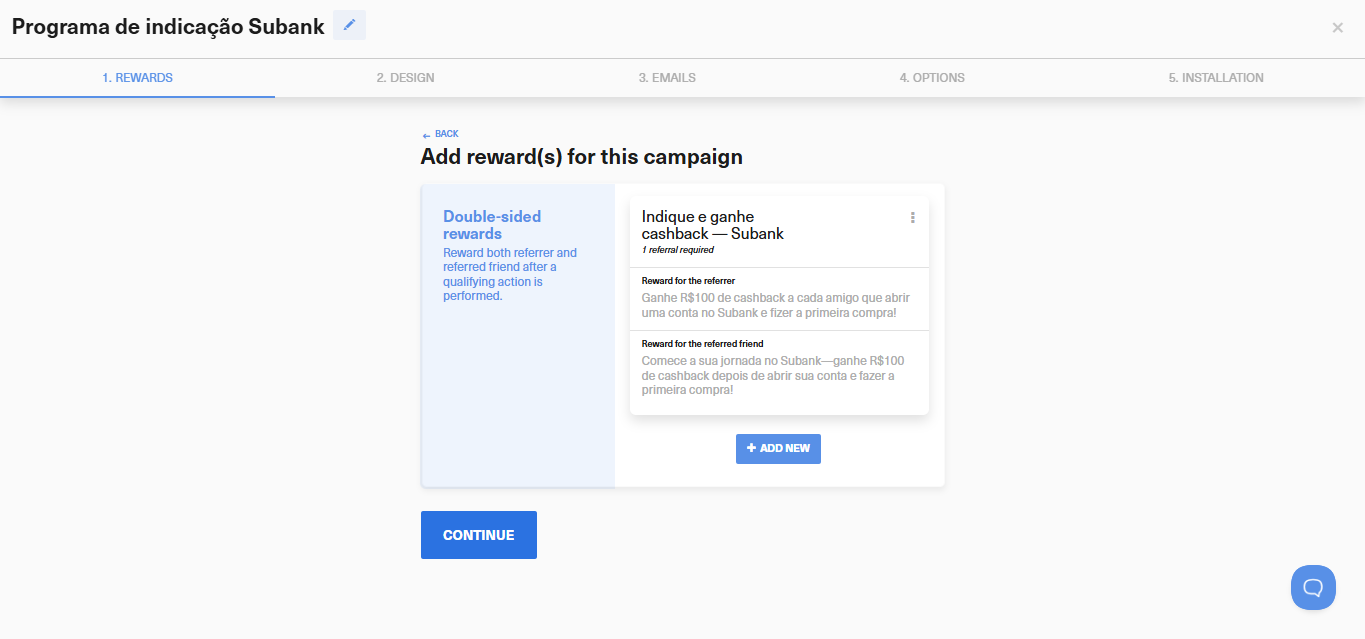
Navigate to Program Editor > Rewards, then open the reward you would like to edit. Update the reward description field(s) to your chosen language. In the example below, we updated our double-sided reward to Portuguese.
2. Update Program Design
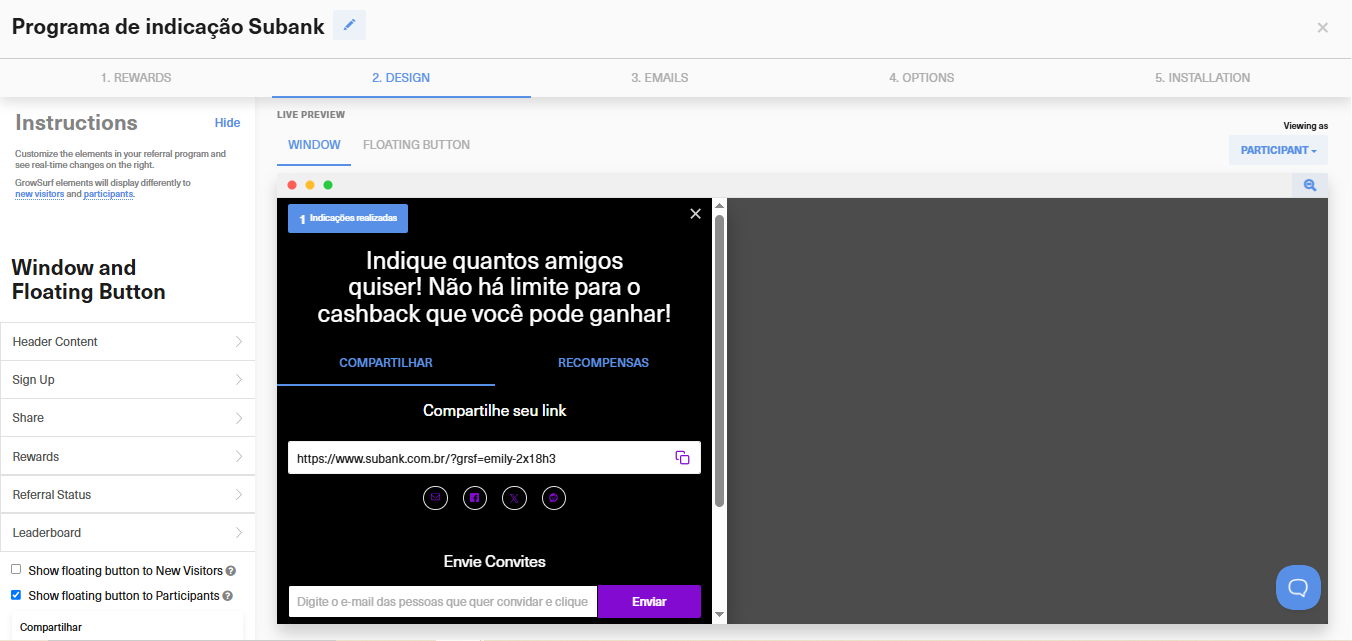
Navigate to Program Editor > Design. Then for each section, edit the text and contents of each field:
- Update all referral program text, including share messages, referred friend elements, buttons, and more. Because these are participant-facing elements, make sure to go through each section thoroughly to make changes.
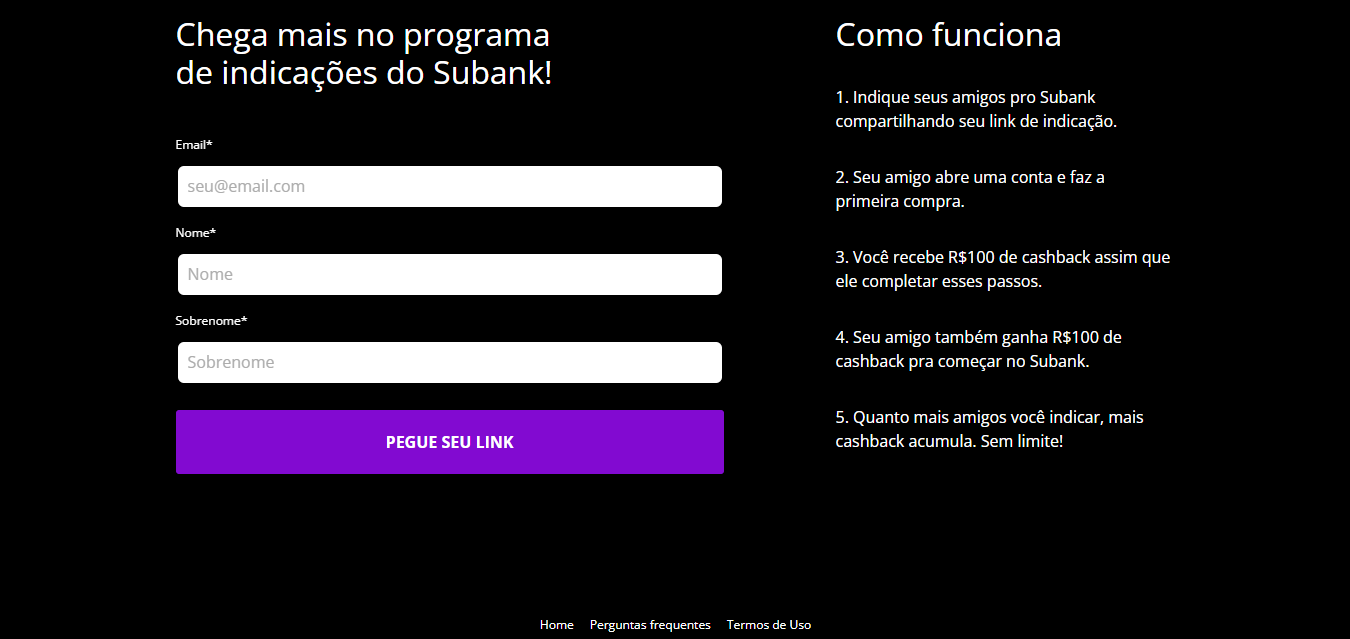
- Your dedicated referral portal page (this is the page that allows participants to monitor their referral status, access their unique link, and track their reward progress).
Make sure to visit your referral portal to ensure all changes are correct. Your referral portal can end up looking like this:
3. Update Program Emails
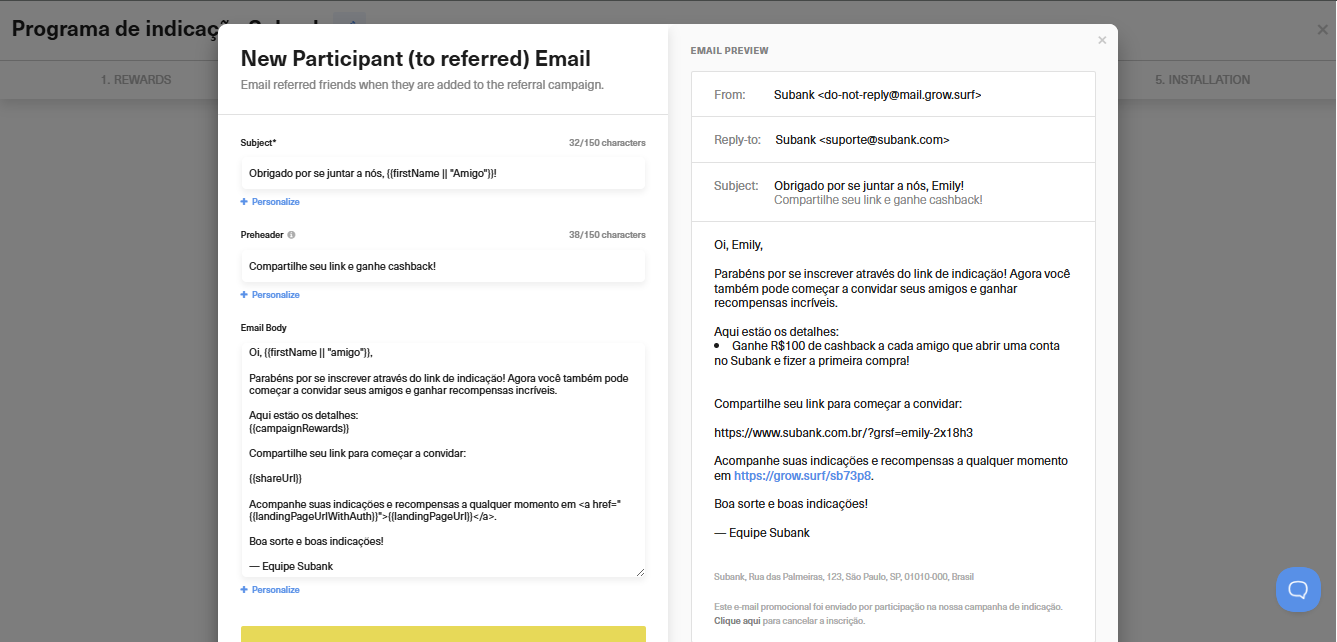
Update the content in your enabled program emails, including both transactional and promotional emails
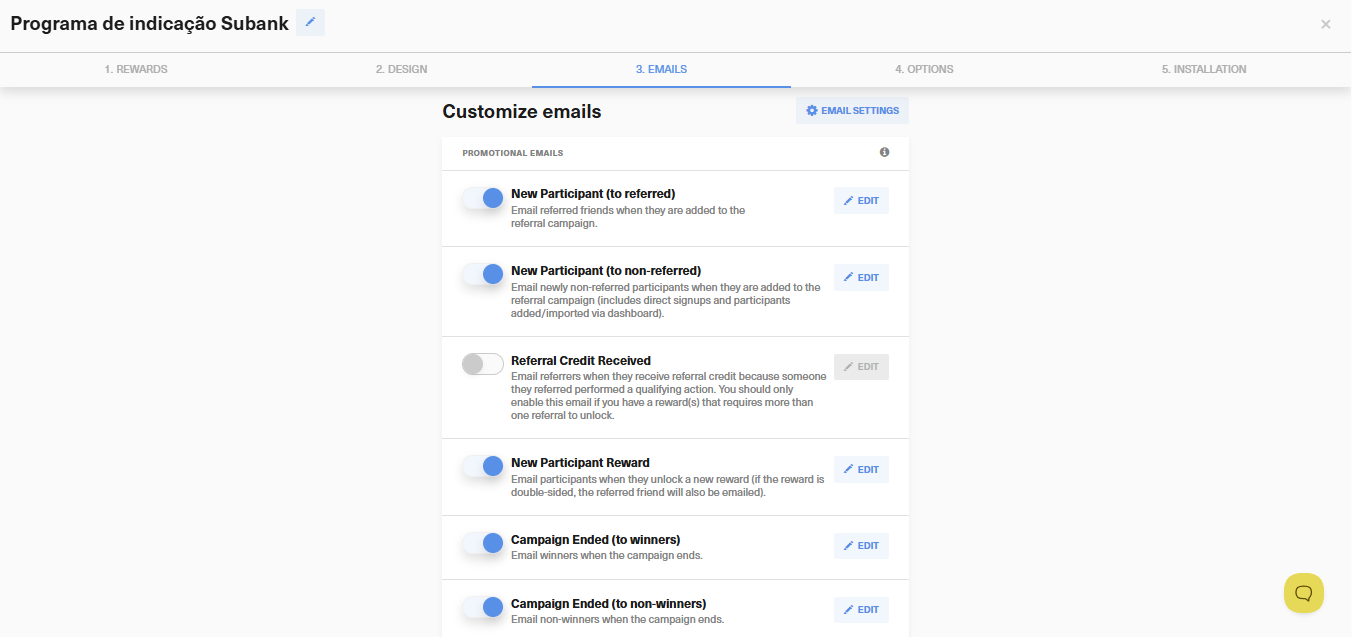
For our Subank example, we have rewritten the language in Portuguese:
Email settings
Make sure to update your program email header, footer, and unsubscribe settings as well. You can do this within Program Editor > 3. Emails > Email Settings.
4. Update Program Options
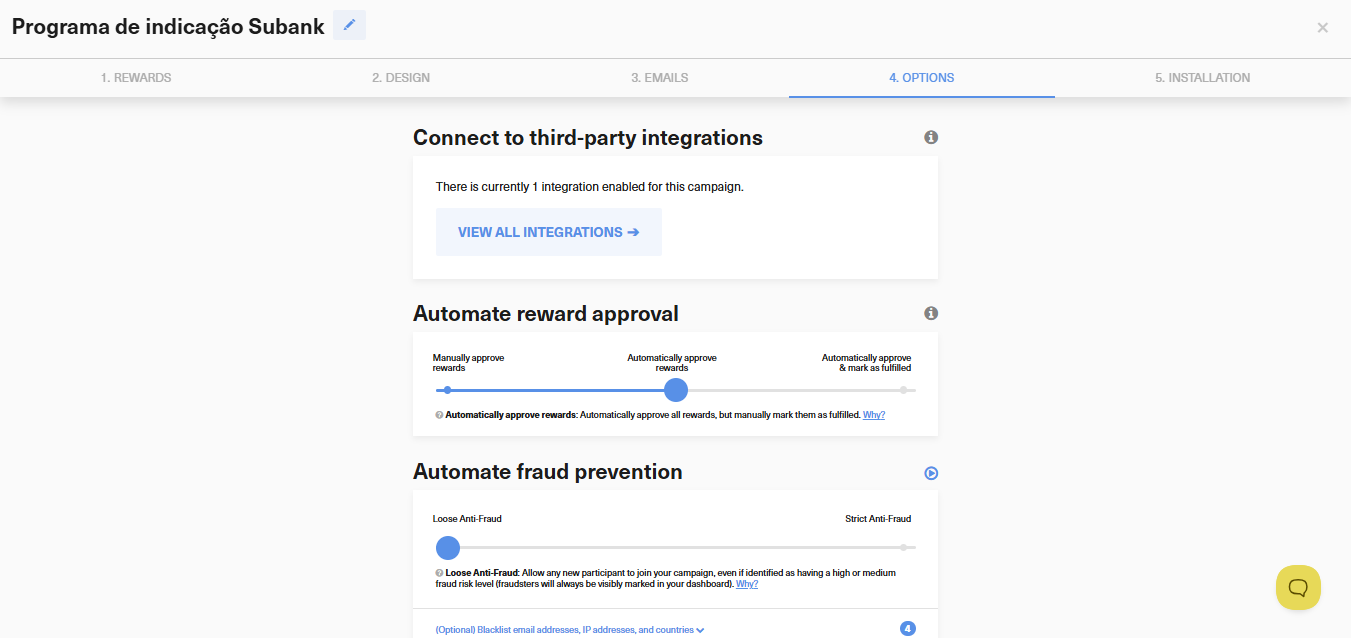
The Options tab allows you to configure integrations, anti-fraud prevention, and more for your program. Click the View All Integrations button and for any enabled integrations, make sure to update the language used in participant-facing fields, if applicable. For example, if you have the PayPal integration enabled with a connected reward, you should update the editable text fields.
5. Multilingual support
If you'd like to localize the content for your participants based on their region, check out our article here. Please note that there are limitations on multilingual support.
If you have any additional questions about updating the language of your program, please reach out to our support team.